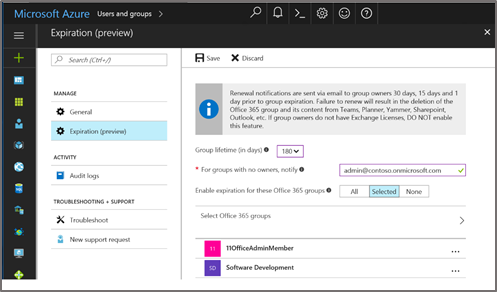
https://blogs.technet.microsoft.com/enterprisemobility/2017/08/09/automated-expiration-for-office-365-groups-using-azure-ad-is-now-in-public-preview/

https://blogs.technet.microsoft.com/enterprisemobility/2017/08/09/automated-expiration-for-office-365-groups-using-azure-ad-is-now-in-public-preview/
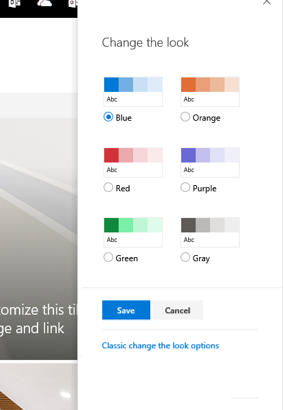
Sometimes there’s nothing like a fresh coat of paint to make a room or a house look new, familiar and engaging! Well, get your paint brushes ready. The new site theming experience, previewed last may during the SharePoint Virtual Summit (showcased here), will begin rolling out to First Release customers on August 21st, 2017. This new capability provides site owners with six default themes that can be applied to all pages of the site – both within team sites and communication sites.
To get started, just click the upper-right site gear icon, and then select Change the look. You then can quickly click on each item and see the change in real-time. In no-time you’ll have the site looking spiffy and new.
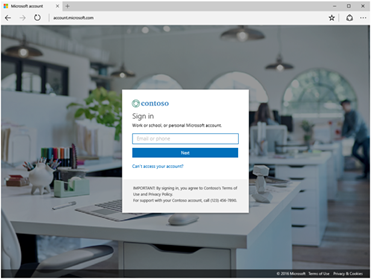
https://blogs.technet.microsoft.com/enterprisemobility/2017/08/02/the-new-azure-ad-signin-experience-is-now-in-public-preview/
To make Office 365 more valuable for your small business, we are announcing three new applications coming to Office 365 Business Premium:
We’re also introducing the Office 365 Business center, a central place where you can manage these business apps and get an end-to-end view of your business. In addition, we’re adding MileIQ, the leading mileage tracking app, as an Office 365 Business Premium subscription benefit. These new services—along with the recently added Microsoft Bookings and Outlook Customer Manager—help you win customers and manage your business.
Connections, Listings, Invoicing and the Business center are rolling out in preview over the next few weeks to Office 365 Business Premium subscribers in the U.S., U.K. and Canada, starting with those in the First Release program. MileIQ Premium is available to all Business Premium subscribers in the U.S, U.K. and Canada effective today.
Let’s take a closer look at each of these products.
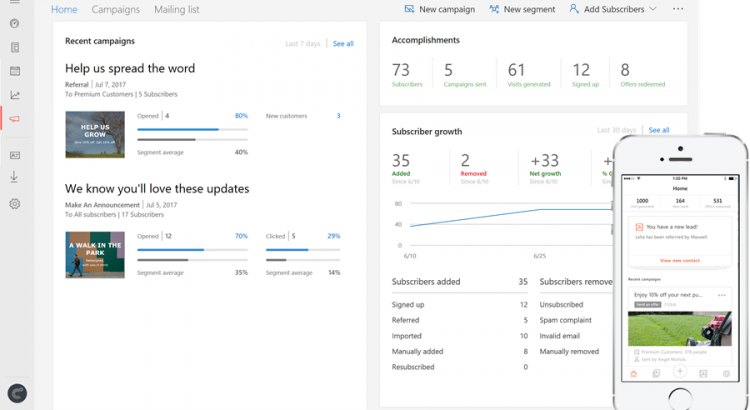
Email marketing can accelerate sales, but getting started can be overwhelming. With Microsoft Connections, you can easily create professional-looking email marketing campaigns with pre-designed templates for newsletters, announcements or customer referrals. You can also provide simple ways for people to join your mailing list or unsubscribe.
As your mailing list grows, you can manage your subscribers by creating segments to efficiently target specific groups of customers. Performance charts and subscriber activity updates track open rate, clicks, new sign-ups, new customers, offer redemptions and unsubscribed numbers for each email campaign, so you can see what is and is not working.

Microsoft Connections is available on the web, and on mobile apps for iOS and Android.
Getting your business listed online is a great way to be discovered by prospective customers, but it can be time consuming to set up your online presence, keep information like business hours up-to-date and monitor performance across sites. Microsoft Listings makes it easy to publish and manage your business listing on Facebook, Google, Bing and Yelp.

Microsoft Listings includes a web dashboard that lets you easily monitor ratings and reviews.
When you update your business profile in Microsoft Listings, the changes automatically populate across Facebook, Google and Bing. And what’s more, you can monitor online views and reviews of your listings across sites from a single dashboard. This makes it easier to understand feedback from your customers and strengthen your online reputation.
Getting estimates and invoices out on time, tracking pending payments and processing payments quickly are critical to keep things running smoothly. But it can tedious and confusing to keep track of information in different systems of record or even on paper. Microsoft Invoicing helps you quickly create professional-looking estimates and invoices, so you get paid quickly.

Microsoft Invoicing is available on the web, and on mobile apps for iOS and Android.
Microsoft Invoicing works with PayPal, so you can accept credit and debit cards online. A connector to QuickBooks lets you sync customer and catalogue data, and transfer invoicing information to your accountant.
The Office 365 Business center brings Bookings, Connections, Listings and Invoicing together in a central location—so you have easy access to your business apps and data. It features a unified dashboard where you can view key metrics from all the business apps, including total outstanding invoices, the number of appointments scheduled, the impressions across Facebook, Google, Bing and Yelp, and the number of new subscribers and sent campaigns.

Office 365 Business center lets you access via the web.
The Business center includes an activity feed, so you can see the details of what’s happening within each of the apps—making it easy to keep up-to-date on new customer appointments, invoices and payments being created or updated by the employees in your business. The activity feed also provides suggestions on what actions to take next, such as alerting you that a payment is overdue and it’s time to resend an invoice.
Because the new business apps are built to work together, you don’t waste valuable time setting up connectors or transferring data manually. A contact in one business app is automatically recognized in another, so you don’t have to input data multiple times. As a business owner, you also have full control over who on your team gets access to which business apps and related information.
If you drive a personal car for work purposes such as customer sales visits, partner meetings or trade conferences, you know that tracking and reporting your miles for tax deduction or expense reimbursement can be a hassle. That’s why we’re pleased to add MileIQ—the leading mileage tracking app on iOS and Android—as a benefit of your Office 365 Business Premium subscription.
MileIQ offers a simple, smarter way to track your miles—with automatic drive detection and mileage logging, easy one-swipe classification as business or personal, and comprehensive reporting. MileIQ has already helped over four million customers save time and money—saving customers $6,900 on average per year in deductions or reimbursements, and 2 hours a week of time spent logging drives. You can log unlimited drives every month with the MileIQ Premium subscription that you get with Office 365 Business Premium. MileIQ is currently available to subscribers in the U.S., U.K. and Canada.
We are excited to get your feedback as you use these new services in your Office 365 Business Premium subscription. Here’s how to get started:

An icon introducing the new business apps will appear when you have signed in to Office 365.
Q. When will Connections, Listings, Invoicing and the Business center be available outside of the preview?
A. We expect these to be generally available before the end of the year.
Q. Will all users in my organization, who have Business Premium subscriptions, get access to Connections, Listings and Invoicing by default?
A. The Office 365 global admin role controls who has access to these apps. Standard users will not have access to Connections, Listings and Invoicing by default. They can request access in the Business center. Global admins can accept or decline their request from Admin center > Settings > Services & add-ins > Business apps.
Q. Where can I learn more about Connections, Listings and Invoicing?
A. Visit the learn more pages for each app:
Q. Where can I learn more about MileIQ?
A. To learn more, visit www.mileiq.com/office365 for product information and detailed FAQs.
Q. How do I activate the MileIQ benefit of my Office 365 subscription?
A. Start by visiting www.mileiq.com/office365 to create a new MileIQ account or sign in using your existing one. Then enter your Office 365 credentials so we can check your eligibility and activate your subscription benefit. Note: You can use any email address you wish when creating a MileIQ account; but be sure to use your Office 365 credentials on the “Check Eligibility” step.
Q. What if I already have a paid MileIQ subscription?
A. If you are currently a paid MileIQ subscriber and you also have Office 365 Business Premium, we’ll convert your existing account. Please contact support@mileiq.com and a member of our team will get back to you.
https://blogs.office.com/en-us/2017/07/10/introducing-microsoft-365/
Today at Inspire, Satya Nadella unveiled Microsoft 365, which brings together Office 365, Windows 10 and Enterprise Mobility + Security, delivering a complete, intelligent and secure solution to empower employees. It represents a fundamental shift in how we will design, build and go to market to address our customers’ needs for a modern workplace.
The workplace is transforming—from changing employee expectations, to more diverse and globally distributed teams, to an increasingly complex threat landscape. From these trends, we are seeing a new culture of work emerging. Our customers are telling us they are looking to empower their people with innovative technology to embrace this modern culture of work.
With more than 100 million commercial monthly active users of Office 365, and more than 500 million Windows 10 devices in use, Microsoft is in a unique position to help companies empower their employees, unlocking business growth and innovation.
To address the commercial needs from the largest enterprise to the smallest business, we are introducing Microsoft 365 Enterprise and Microsoft 365 Business.
Microsoft 365 Enterprise is designed for large organizations and integrates Office 365 Enterprise, Windows 10 Enterprise and Enterprise Mobility + Security to empower employees to be creative and work together, securely.
Microsoft 365 Enterprise:
Microsoft 365 Enterprise is offered in two plans—Microsoft 365 E3 and Microsoft 365 E5. Both are available for purchase on August 1, 2017.
Microsoft 365 Enterprise is built on the foundation of the highly successful Secure Productive Enterprise, which grew seats by triple digits in the last year. Going forward, Microsoft 365 Enterprise replaces Secure Productive Enterprise to double-down on the new customer promise of empowering employees to be creative and work together, securely.
Microsoft 365 Business is designed for small-to-medium sized businesses with up to 300 users and integrates Office 365 Business Premium with tailored security and management features from Windows 10 and Enterprise Mobility + Security. It offers services to empower employees, safeguard the business and simplify IT management.
Microsoft 365 Business:
Microsoft 365 Business will be available in public preview on August 2, 2017. It will become generally available on a worldwide basis in the fall of 2017, priced at US $20 per user, per month.
As a part of our commitment to small-to-medium sized customers, we’re also announcing the preview of three tailored applications that are coming to Office 365 Business Premium and Microsoft 365 Business:
Today, we are also announcing that Microsoft’s mileage tracking app, MileIQ, is now included with Office 365 Business Premium.
Satya also discussed how Microsoft 365 represents a significant opportunity for partners to grow their business. Microsoft 365 will drive growth by enabling our more than 64,000 cloud partners to differentiate their offerings, simplify their sales processes and increase their revenue.
According to two Forrester Total Economic Impact™ Studies (commissioned studies conducted by Forrester Consulting), Microsoft 365 Enterprise and Microsoft 365 Business increase average partner margins by an estimated 35 percent and 20 percent, respectively, over three years. Partners can learn more and explore training, sales and deployment resources on the Microsoft 365 partner site.
We are incredibly enthusiastic about Microsoft 365 and how it will help customers and partners drive growth and innovation.
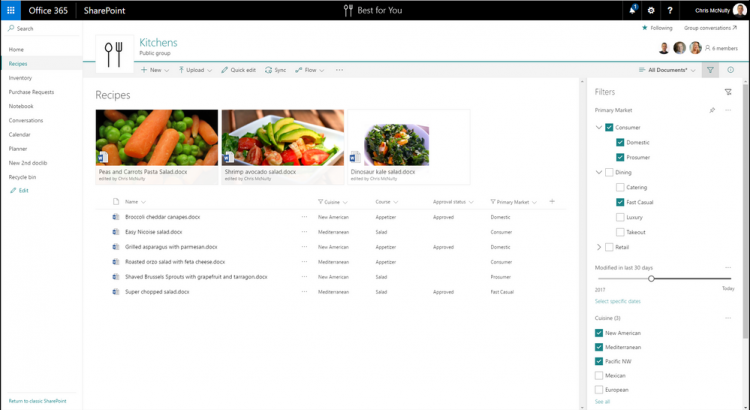
As we continue to update user experiences and customizability in SharePoint document libraries, we are pleased to announce the inclusion of metadata-driven filtering to the filters pane, originally introduced in late 2016.
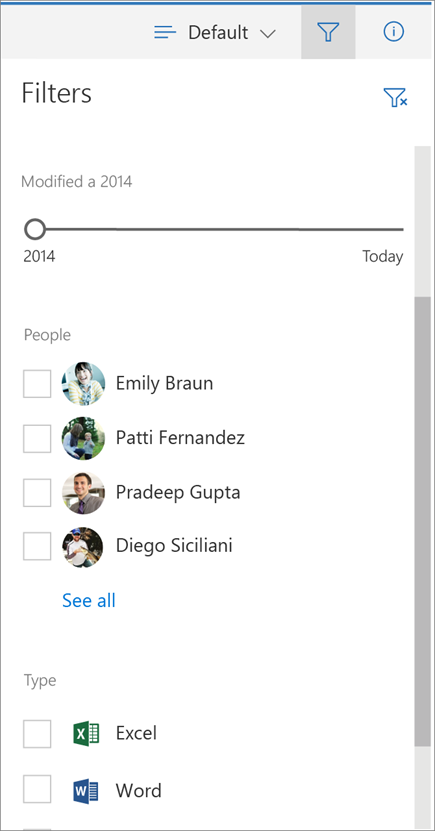

 .
.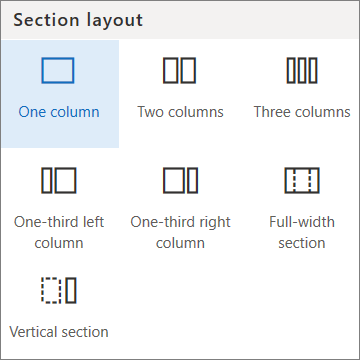
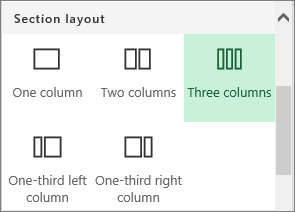
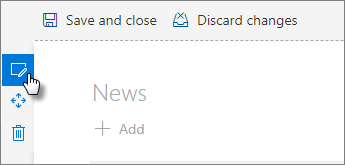
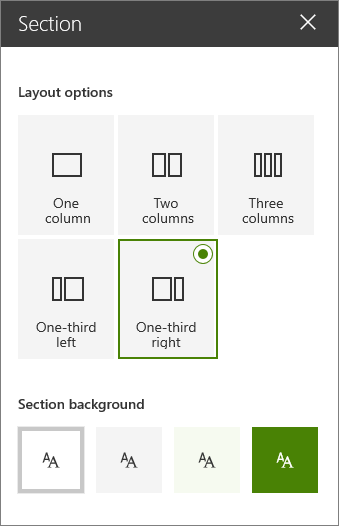
NOTE: When you have content in two or more columns, and then reduce the number of columns, the content in the right most column will move to the next column on the left. If you reduce to one column, content in the second or third columns will move to the bottom of the first column.
.
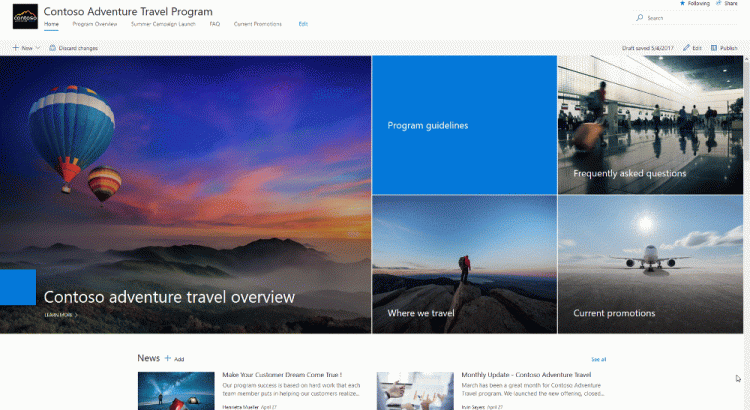
SharePoint Communication sites are now rolling out to Office 365 First Release customers, followed by full worldwide rollout to Office 365 customers in the coming months.
https://blogs.office.com/en-us/2017/06/27/sharepoint-communication-sites-begin-rollout-to-office-365-customers/
Nice tip to enforce new communcation sites in your tennant
Want to Get a Look at the New Communication Sites? Here’s a Trick!
This “Survival Guide” aims to gather useful materials related to Microsoft Teams. It brings together some of the best information about Microsoft Teams all in one place. These resources can be used to get the best from Microsoft Teams, showing how to implement Microsoft Teams in an organisation and to increase its effectiveness.
Microsoft Teams is the new chat-based collaboration service in Office 365, that is a hub for teamwork with:
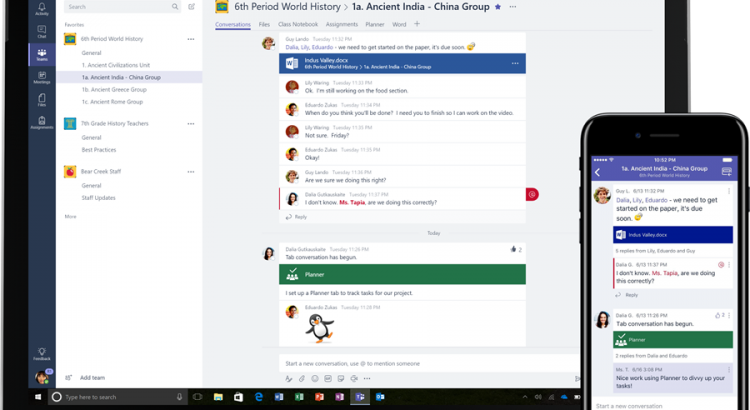
New classroom experiences in Microsoft Teams are now rolling out to Office 365 for Education customers.