
Microsoft Office 365 Productivity eBooks Collection

https://gallery.technet.microsoft.com/Office-365-Productivity-de7da48a

his Microsoft Office 365 Productivity eBooks collection comes with ten official Microsoft eBooks with Office 365 best practices, tips for collaboration and productivity, as well how to adopt new ways of working using Office 365.

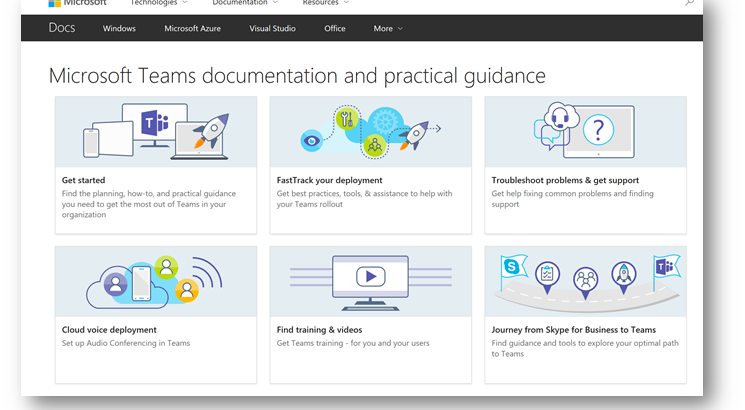
Products covered include OneDrive, SharePoint, Microsoft Teams, Skype for Business and much more. See the included document for a complete index and explanation for each eBook.

These eBooks are publicly available direct from Microsoft and are brought together here as a collection purely for convenience and have not been altered in any way.


Connecting the modern workplace with SharePoint and OneDrive: Announcements at Ignite 2017

https://techcommunity.microsoft.com/t5/SharePoint-Blog/Connecting-the-modern-workplace-with-SharePoint-and-OneDrive/ba-p/110399

September 26, 2017 – Jeff Teper, Corporate Vice President, Microsoft

As part of Microsoft 365, SharePoint and OneDrive connect the workplace with intelligent content management and intranets. Digital transformation is driving growth across Microsoft 365, SharePoint and OneDrive.  Today:

  • More than 300,000 organizations have SharePoint and OneDrive in Office 365, including 85% of the Fortune 500
  • More than 65% of all SharePoint seats are now online vs. 35% for on-premises licenses
  • Growth in active users was 90% in the last year alone
  • Customers are leveraging our investments in OneDrive, with 300% growth in file sync
  • We were recognized as leaders by analysts in six Gartner Magic Quadrants and Forrester Waves

Today at Microsoft Ignite 2017, we announced new innovations that further empower you to share and work together, to inform and engage people, to transform business processes, and to harness collective knowledge.  In addition, we announced new capabilities for organizations to protect and manage data, and to build custom solutions with SharePoint, OneDrive, and Microsoft 365.

Let’s look at the highlights of the many innovations we unveiled today.

https://techcommunity.microsoft.com/t5/SharePoint-Blog/Connecting-the-modern-workplace-with-SharePoint-and-OneDrive/ba-p/110399


SharePoint hub sites new in Office 365

Source: https://techcommunity.microsoft.com/t5/SharePoint-Blog/SharePoint-hub-sites-new-in-Office-365/ba-p/109547

Today at Ignite 2017, we announced SharePoint hub sites, a new building block of the intranet, to bring together related sites to roll up news and activity, to simplify search, and to create cohesion with shared navigation and look-and-feel.

SharePoint hub sites bring together related sites to roll up news and activity, and to create cohesion with shared navigation and look-and-feel.SharePoint hub sites bring together related sites to roll up news and activity, and to create cohesion with shared navigation and look-and-feel.

You can use SharePoint hub sites to organize concepts, teams, divisions, or resources throughout your businesses. Let’s dive into the details.

Create a cohesive set of related sites with shared navigation, look and feel

A hub site brings consistency across sites from the top down. When a team site or communication site is associated to a hub site, it inherits common characteristics, including:


  • Navigation – Define top navigation in the hub site that is inherited by associated sites.
  • Theme – Define the look and feel of the hub site, and that theme remains consistent across associated sites.
  • Logo – A logo on a site is like the green sticker on a map that says, “You are here.” It’s an important identifier of the site you are visiting, and the information and people the site represents. A consistent logo defined by the hub site and used by associated sites says, “You are here, and you have not left.”

SharePoint hub sites bring together team sites and communication sites together into more centralized locations within your intranet.SharePoint hub sites bring together team sites and communication sites together into more centralized locations within your intranet.

Roll up and present a consolidated view of news and activities

Throughout the lifecycle of your projects, your launches, your internal campaigns, it is important to increase visibility, awareness and discoverability beyond the core day-to-day people, and not expect everyone to have to drill into the various related sites, but more represent a clear, broad picture of what’s happening across sites, aka, what’s happening across projects and initiatives. Team sites and communication sites push content and information up to the hub site level with:

  • News aggregation –After you create and publish a news article on an associated site, the news article surfaces on SharePoint home, in the SharePoint mobile apps, and now on the hub site’s home page.
  • Combined site activities – It’s important to know what is happening within sites, so you can prioritize your focus and your time. Site activities are visible on a team site’s home page, and on the site’s card on SharePoint home. Now, site activities will roll up from each associated sites so that they are visible on the hub site’s home page, so you can see what happening across related sites, instead of having to view activity site by site.
  • Scoped search – When you search for content from a hub site, results include content from all associated sites. Because associated sites are related, search from the hub site home page increases relevance, and enhances content discovery.

Create hub sites and associate team and communication sites

It is easy for admins to create one or more hub sites. After a hub site is created, site owners can associate existing team sites and communication sites with the hub site, or to associate a new site while creating a site from SharePoint home in Office 365Soon you will be able to create an associated site directly from within the hub site itself.

Site owners can associate an existing team site or communication site with a hub site.Site owners can associate an existing team site or communication site with a hub site.

Site owners can associate an existing team site or communication site with a hub site.

  1. Click the gear icon in the upper right of the site.
  2. Click Site information.
  3. In the Edit site information pane that appears, click the Hub site drop-down menu and choose the right hub site to join.

Note that team sites and communication sites can only be associated to one hub site. And as easy as it is to join a site to a hub site, you, too, can un-join from one. This is the power of a dynamic intranet, one that can change and adapt with the ebb and flow of your ever-changing business landscape.

Access hub sites and associated sites with the SharePoint mobile app

The SharePoint mobile app helps keep your work moving forward by providing quick access to all your sites, news and the team members you work with, and search to find content and people across your organization.


With the addition of SharePoint hub sites, the SharePoint mobile app will be updated to natively render hub sites, and their pages, news, and content, with smooth navigation between associated sites and the scoped search experience. Find what you need on the go, and get going!

SharePoint hub sites and their associated sites are easy to access and navigate via the SharePoint mobile app.SharePoint hub sites and their associated sites are easy to access and navigate via the SharePoint mobile app.

Moving forward and growing together

Team sites, communication sites and now hub sites – as well as classic publishing sites and sites for applications – are building blocks of your intranet. SharePoint connects the workplace so that you can share, manage, and find the content, knowledge, and apps you need, on any device.


As you modernize and extend your intranet to support collaboration and communication, SharePoint will support you and your teams now and into the future.


Let us know what you need next. We are always open to feedback via UserVoice and continued dialog in the SharePoint community in the Microsoft Tech Community —and we always have an eye on tweets to @SharePoint. Let us know.


—Mark Kashman, senior product manager for the SharePoint team


FAQs

Q: When can I expect to see SharePoint hub sites appear in my Office 365 tenant?

A: SharePoint hub sites with begin rolling out to Office 365 First Release customers in the first half of calendar year 2018.


Q: Can a hub site replace my current organizational portal?

A: Hub sites are designed to let you dynamically organize closely related sites, bringing together similar projects, and binding related assets, and presenting common activity. Customers with portals that include customization beyond the web parts and extensions that SharePoint Framework currently supports are likely to continue using the SharePoint publishing infrastructure, which continues to be fully supported both in SharePoint Server on-premises and SharePoint Online.


Q: When should I use a team site, and when should I use a communication site?

A: Your SharePoint team site lets you share content, knowledge, news and apps with your group as collaborate on a project. A communication site lets you tell your story, share your work, and showcase your product across the organization.

Introducing the SharePoint Migration Tool from Microsoft

Source: For more information  and whole article go to https://techcommunity.microsoft.com/t5/SharePoint-Blog/Introducing-the-SharePoint-Migration-Tool-from-Microsoft/ba-p/109767

For additional details and to see the SharePoint Migration Tool in action, check out the video below.


While the SharePoint Migration Tool provides support for many migration scenarios, we recognize your needs may differ in scope and complexity.  For more complex migrations, support with adoption and usage, or help planning Microsoft FastTrack includes resources, tools, and experts to make your rollout of Office 365 a success.

Getting Started
To get started and preview the new SharePoint Migration Tool from Microsoft visit https://aka.ms/spmt.

Resources
How to use the SharePoint Migration Tool
How the SharePoint Migration Tool works
How to format your CSV file for data content migration
Create a user mapping file for data content migration
SharePoint Online and OneDrive Migration Speed SharePoint Online provided Azure containers and queues for SPO Migration API


Communication sites : New web parts with updated search and usability from the authoring toolbox

Source: For more information  and whole article go to : https://techcommunity.microsoft.com/t5/SharePoint-Blog/Refine-your-message-and-increase-your-reach-with-SharePoint/bc-p/110500

New web parts with updated search and usability from the authoring toolbox

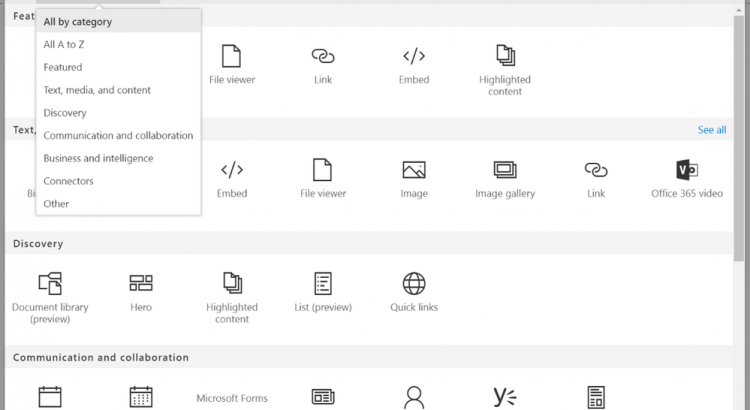
Communication sites dynamically pull in content from across Office 365. To do this dynamically, and with flexibility, SharePoint pages use web parts, which you can configure to your needs. You can add files, videos, images, news, Yammer feeds and more. Just click the + sign and pick a web part from the toolbox to add content to your page. The toolbox itself has been updated to expand and more easily find the right web part by category or search.

The team has been hard at work developing new web parts and updating existing ones:

  • NEW                 
    • Planner – View Planner plans inside SharePoint pages and news with visual Kanban task layouts and beautiful plan overviews.
    • Microsoft Forms – Create your survey at forms.office.com, grab the final Share URL and display your surveys right within the SharePoint user interface. You can choose to show the results after the user submits the form, too.
    • Group calendar – display your Office 365 group’s upcoming and past calendar meetings and events.
    • Connectors – we will begin to bring in the value of Office 365 Connectors that provide connection to numerous third-party services like Facebook, Bing News, Jira, GitHub, Stack Overflow and up to 100 existing connectors – with more coming over time.
    • File viewer – Beautifully, visually highlight over 270+ file types from within SharePoint pages and news article. This web part is an update (+ name change) to the Document web part, and continues to support embedding Word, Excel and PPT, and now renders PDFs, 3D models, medical images, and more.
    • Twitter – bring in live tweets from chosen Twitter handles, specific collections or via search keywords. It’s always nice to show the live context of what’s being said externally right alongside the context of what you are working on internally.
    • Spacer & Divider – simple web parts that give you the ability to add physical space between web parts, or a visual line in between.
  • UPDATED
    • Yammer – Now out of preview, the Yammer web part can be programmed to showcase a Yammer group discussion, and it looks great in the Web layout of SharePoint pages and news articles and when viewed within the SharePoint mobile app (iOS, Android and Windows Mobile).
    • Image – You can pull in Bing Images that utilize the Creative Common license to enhance your pages and news (you are prompted to review the image licensing). You, too, can pull images directly from a specific document library. And once your images are on the page, you can edit them inline with simple gestures like adjusting the ratio and cropping.
    • Text – the rich text editor web part now gives you greater control for how your text appears. From the simple command bar within the web part, select the ellipses to display the broader set of choices in the edit pane, like font colors and highlights, plus table creation and editing.
    • People – a new Descriptive display shows more profile information with room to add custom links and descriptions per person.
    • Events – greater control of the preferred date range to show upcoming events, plus the ability to see each instance of recurring events.
    • Highlighted content – Ability to choose from a specific document library as the source, more design and layout choices like Filmstrip and Masonry, plus additional filtering mechanism to refine by document type and control metadata mapping to influence the display of the search-based results within the web part.