Public preview of Microsoft Forms for Office 365 commercial subscribers

Public preview of Microsoft Forms for Office 365 commercial subscribers
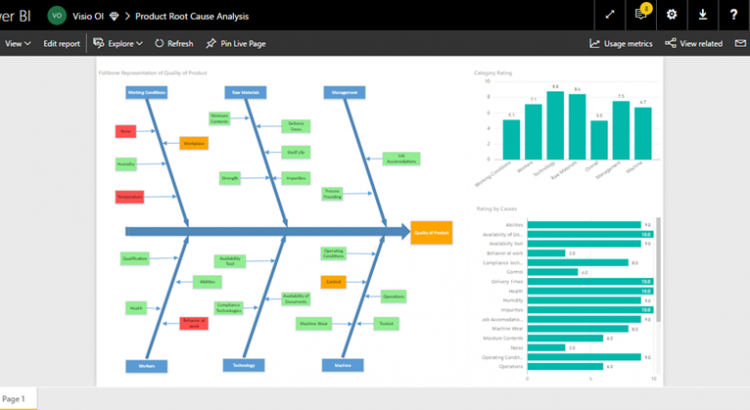
Visio and Power BI work better together than ever before thanks to the new Visio visualization. Any Visio user can sign up for the preview to start using this capability right away.
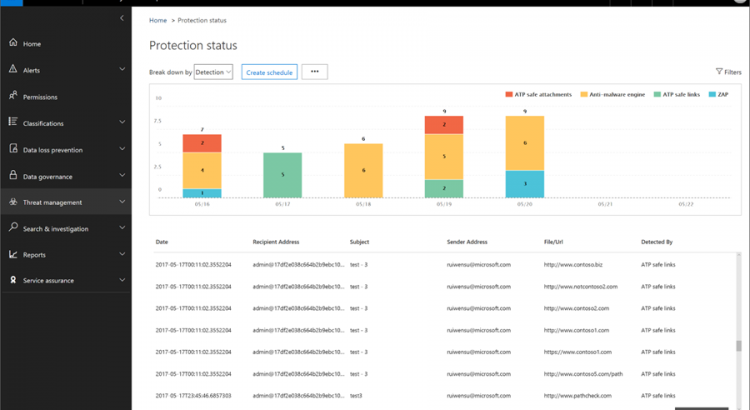
Recent updates for security and compliance include enhancements to Advanced Threat Protection, eDiscovery, Advanced Data Governance, Advanced Security Management and expanded support for Windows Information Protection. Read on to learn more about these updates.
https://blogs.office.com/2017/06/22/new-in-office-365-security-and-compliance-june-update/
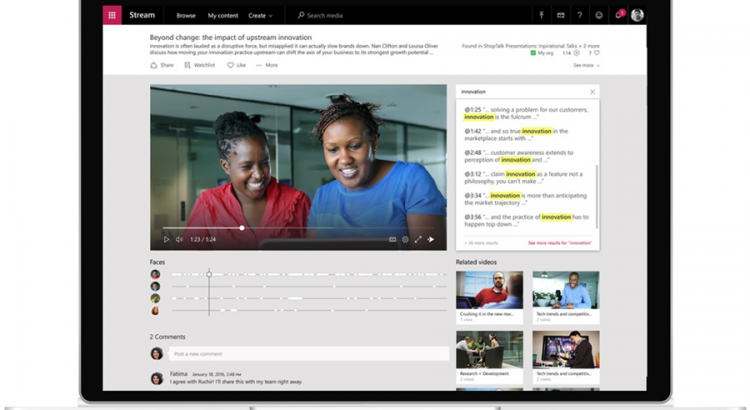
Microsoft Stream is now generally available as a standalone service and is rolling out to Office 365 Enterprise customers in 181 markets and 44 languages. We’re also announcing new intelligent features that take productivity and user engagement to new heights.
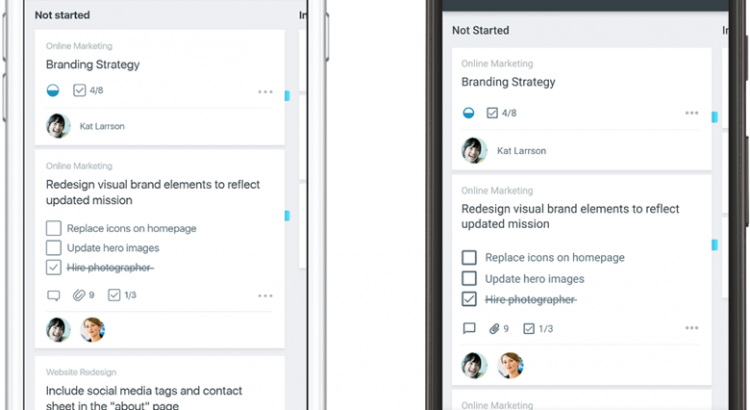
We are pleased to announce that the new Microsoft Planner mobile app is now available for iPhone and Android phones. Starting today, current Planner users can use this companion app to view and update their plans on the go, addressing feedback we’ve heard since the launch of the Planner web app. For people who are new to Planner, you can first get started by visiting tasks.office.com. Once you’ve created your plans in the web app, you can view and update those plans in the mobile experience.
Planner is available to customers with Office 365 Enterprise E1–E5, Business Essentials, Business Premium and Education subscription plans. Current Planner users can download the app for Android and iOS.
https://blogs.office.com/2017/06/05/improving-people-in-outlook-for-ios-and-android/
With this latest release addressing one of our most highly requested features with improvements to our People experience.

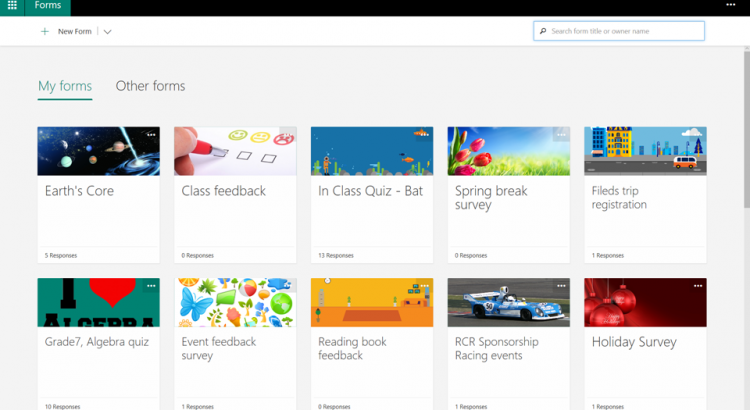
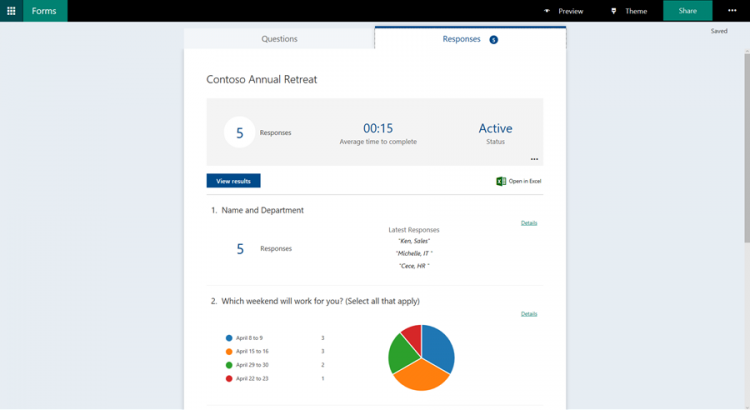
https://blogs.office.com/2017/05/24/updated-portal-and-new-languages-for-microsoft-forms/
updates to Microsoft Forms, including improvements to the Forms portal, more languages and right-to-left reading support.
Today, during the SharePoint Virtual Summit, we unveiled the latest innovations for SharePoint and OneDrive, including powerful integrations across Office 365, Windows and Azure. These developments build upon the vision we unveiled last year, and have been delivering on since, with innovations to reinvent content collaboration and usher in a new generation of mobile and intelligent intranets.
We unveiled many innovations across SharePoint and OneDrive. Here’s a look at the four headline announcements.
OneDrive lets you share files securely with anyone—inside or outside your organization. Its deep Office integration, which powers rich co-authoring, allows you to collaborate on these shared files with others in real-time. And it lets you access all your Office 365 files, including your individual work files and files shared with you by individuals, teams and the organization—regardless of whether you’re on a PC, Mac, an iOS or Android device or a Windows phone.
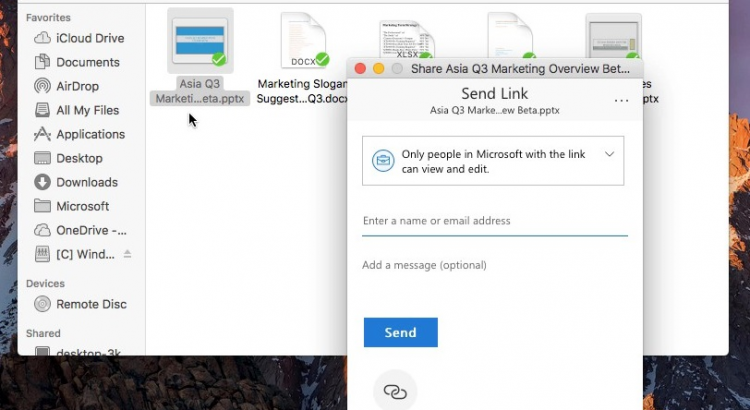
Building upon last week’s announcement of OneDrive Files On-Demand—which lets you work with all your files within File Explorer on Windows 10—we announced today that starting this summer you will be able to share Office 365 files directly from File Explorer on PC and Finder on Mac. The sharing experience has been simplified, so you can share a file or folder with specific people or send a link that enables anyone who needs access, inside or outside your organization. In addition, you can now control how long a link provides access, and you can easily view and modify the permissions you have granted. The new sharing experience is the same, whether you share on the web, in Explorer on Windows 10 and Windows 7, or in Finder on Mac.

Share files and folders with colleagues inside and outside your organization directly from File Explorer on Windows 10 and Windows 7.

Share files and folders with colleagues inside and outside your organization directly from Finder on Mac.
Innovations that we’ve released over the last year and announced today are sparking customers to choose OneDrive over other file storage and sharing solutions. Read “File sharing and cloud storage with OneDrive and Office 365” to learn more.
As the next step toward ushering in the next generation of intranets, today we announced SharePoint communication sites, coming this summer. A communication site is a beautiful, dynamic site that lets you reach a broad audience to keep the organization informed and engaged. Communication sites look great on the web, on a PC or Mac, on mobile browsers and in the SharePoint app.

Easily create beautiful intranet sites to reach a broad audience across your organization.
While your team site lets you share within your group as you’re working, a communication site lets your group share broadly and communicate its message across the organization. News published on a communication site surfaces on SharePoint home in Office 365 and on SharePoint mobile to all users who have access to the site.
Communication sites can be created in seconds. You can configure the default web parts on your site’s pages to tell your story. You can customize page layout with new multi-column sections and drag-and-drop authoring with a range of richly functional web parts, including an image gallery, interactive Bing maps, videos from a Microsoft Stream channel and a new events web part.
Add the Yammer web part to a communication site to solicit feedback and foster conversation. Yammer adds a conversational layer to the intranet, so you can drive employee engagement and share best practices across the organization, right in the context of a communications site. To learn more about Yammer integration with SharePoint and other Yammer announcements made today, read “New in Yammer—building a more engaged and connected organization” and watch Updates to Yammer—integrating conversations into your SharePoint experiences.
SharePoint enables you, your team and your organization to streamline tasks, automate workflows and integrate processes seamlessly into your work—on any device and from anywhere you work. Starting this summer, you will be able to use Microsoft PowerApps to easily create custom forms that surface right in the context of a SharePoint list or library. Users can then create, view and interact with data using your custom form, rather than default SharePoint forms. This is a significant milestone for both SharePoint and PowerApps, as it empowers any user to drive transformation of team and organizational processes.

Create custom forms inside SharePoint lists and libraries with no code using PowerApps.
We also continue to deepen integration of SharePoint and Microsoft Flow. New built-in approval flows let you send any document for approval with a custom message. The recipient can approve the request directly from a rich, actionable email message, so approval and feedback can be given without leaving your inbox.

Approval flows, built in to SharePoint, send a rich, actionable email message.
Today, we announced a more personalized search that leverages machine learning and artificial intelligence from Microsoft Graph to surface more relevant and valuable results, faster. When you’re searching for knowledge, it may be found in content such as files, sites and news. And it might also be found through your colleagues. Now, your search results will include people whose skills, interests and projects—part of their Office 365 profile—are relevant to your query.
Search results activate people cards, so you can learn at a glance about a person and the content they work on. One more click activates an extended view with richly detailed information from the user’s profile. These enhancements to search are rolling out over the next few months.

These innovations illustrate our commitment to reinventing productivity, so that you, your teams and your organization can achieve more. Today, we showcased customers like DBS, Avanade, Shire and Fourlis who use SharePoint and OneDrive to achieve more. We’re honored to have them join the growing ranks of customers who are sharing their stories of success, including Rackspace, The Hershey Company, NASCAR, Qantas, T-Mobile and many more.
The headline announcements I’ve shared here are but the tip of the iceberg. At the SharePoint Virtual Summit, we announced dozens of innovations that will help you accelerate your digital transformation in the year ahead. To learn more about the new capabilities across SharePoint and OneDrive, and the transformational outcomes they drive, read “New SharePoint and OneDrive capabilities accelerate your digital transformation.”
—Jeff Teper
Playlist with all video’s regarding SharePoint Virtual Summit 2017
Today, we are excited to share a set of new features that will allow you to see and access all your files on Windows 10, be more productive offline on your mobile devices and quickly share files on iOS.
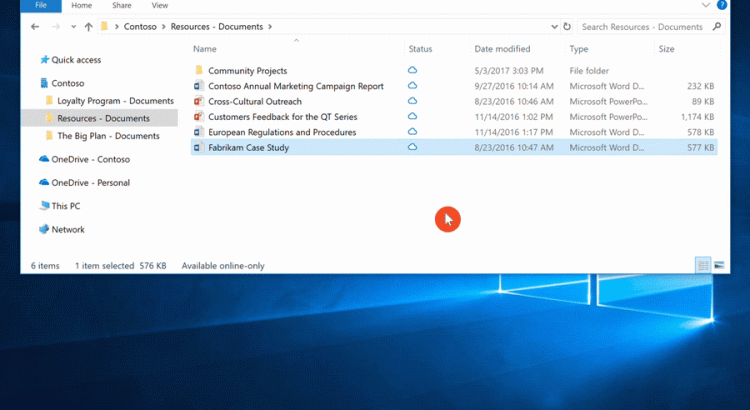
At Microsoft Build 2017, Joe Belfiore announced that the new OneDrive Files On-Demand feature will be delivered with the Windows 10 Fall Creators Update. With Files On-Demand, you can access all your files in the cloud without having to download them and use storage space on your device. You don’t have to change the way you work, because all your files—even online files—can be seen in File Explorer and work just like every other file on your device.
Files On-Demand also allows you to open online files from within desktop or Windows store apps using the Windows file picker. Simply select the file you want to open in the file picker, and the file will automatically download and open in your app. Furthermore, you’re covered in both your home and professional life since it works with your personal and work OneDrive, as well as your SharePoint Online team sites.
This has been the #1 requested feature for OneDrive on UserVoice, and we’re excited to deliver it in a simple and powerful new way.