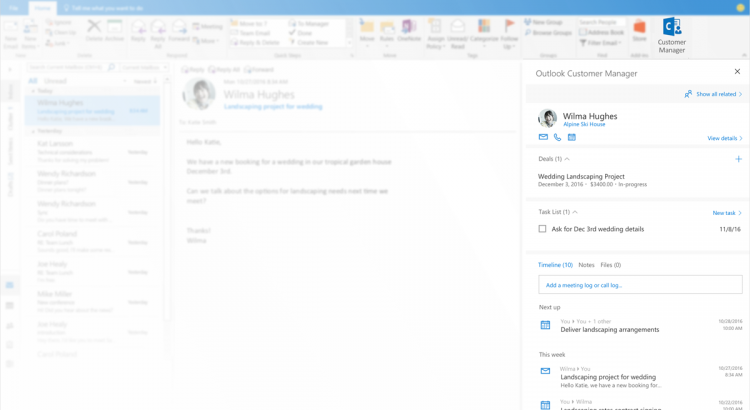
https://blogs.office.com/2016/11/14/introducing-outlook-customer-manager-relationships-made-easy-for-small-businesses/
https://www.youtube.com/watch?v=TK67_BKAzdY
https://blogs.office.com/2016/11/14/introducing-outlook-customer-manager-relationships-made-easy-for-small-businesses/
https://www.youtube.com/watch?v=TK67_BKAzdY
Source: https://techcrunch.com/2016/11/14/microsoft-announces-visual-studio-for-mac-will-launch-in-november/
Fans of cross-platform coding will be happy to know that Visual Studio, a “a true mobile-first, cloud-first development tool for .NET and C#,” will arrive for Mac during the Connect() conference in November. The move places Microsoft’s IDE on Macs. The IDE follows Visual Studio Code, Microsoft’s code editor, to OS X.
Why is Microsoft seemingly abandoning the quest for Windows hegemony? The writing is one the wall: cloud computing is there future and tools like AWS and Azure are quickly replacing the local server. Microsoft is losing out to tools like Docker and Heroku on the web and it’s only a matter of time before coders are more comfortable with their MacBooks and VIM than with Windows.
“They make their money off Azure and other services. In other words, they are making their money mainly off of developers now and its in their best interest to get on the good side of devs which is why they suddenly have a vested interest in open sourcing tools and helping Mac/Linux,” wrote Hacker News user BoysenberryPi.
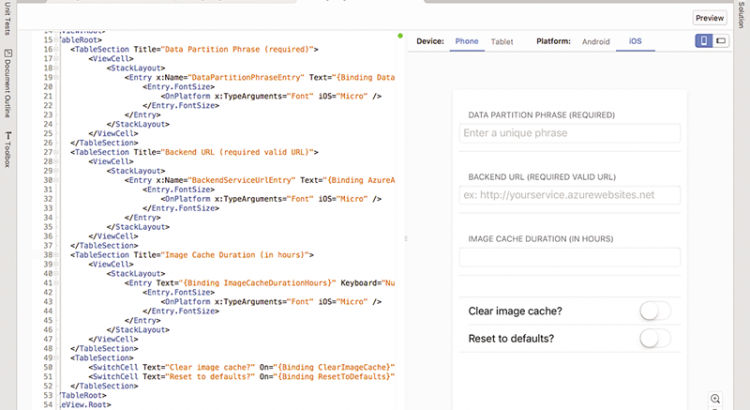
The IDE is very similar to the one found on Windows. In fact, that is presumably the point. By making it easy for OS X users to switch back and forth between platforms Microsoft is able ensure coders can quickly become desktop agnostic or, barring that, give Windows a try again. From the release:
You can read more about the platform here and prepare yourself for a little C# coding with Visual Studio Code.
https://powerbi.microsoft.com/en-us/blog/power-bi-teams-up-with-microsoft-teams/
Have you seen the announcement about Microsoft Teams, the new chat-based workspace in Office 365? Check it out!
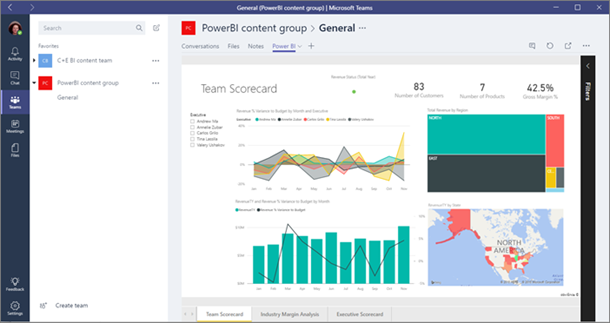
Groups in Power BI are built on Office 365 groups, too, so now you can add and interact with Power BI groups in your Microsoft Teams groups.

f you’re an admin for a Power BI group, when you create a team in Microsoft Teams, the app suggests that you add Microsoft Teams functionality to your existing group.
In your Microsoft Teams channel, you just tap the + sign, then add Power BI as a tab in your channel.

Microsoft Teams automatically detects all the reports in your Power BI groups and in My Workspace. You can choose which ones to show in the Power BI tab in your channel.

Now your Power BI report is handsomely displayed in your Microsoft Teams channel.

If your team isn’t taking advantage of groups in Power BI yet, now is a great time to try them. They’re a great way to share your dashboards, reports, and datasets with your coworkers. Read more about groups in Power BI.
Then see how you can leverage your Power BI groups in Microsoft Teams!
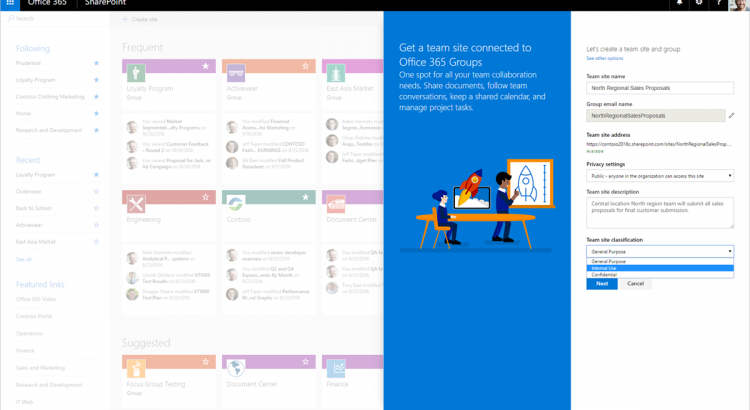
https://blogs.office.com/2016/11/08/create-connected-sharepoint-online-team-sites-in-seconds/
https://blogs.office.com/2016/11/07/first-free-online-onenote-conference-aims-to-engage-a-global-audience/
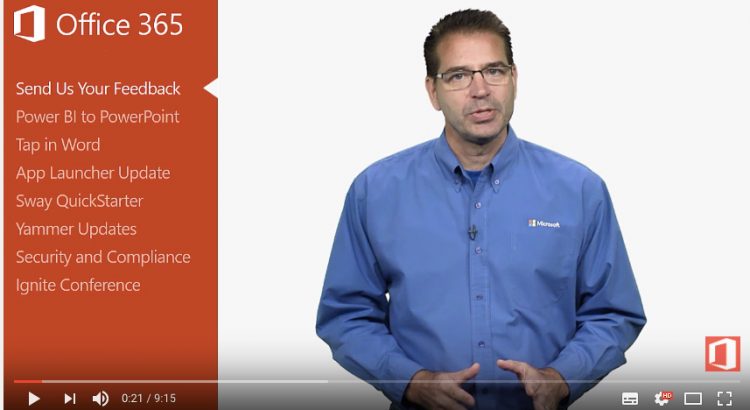
We have created a series of demo videos around the theme “Reinventing Productivity with Office 365”.
They showcase some of our latest Office 365 innovations and provide you with ideas on how to best use the solutions and features available!
Whether you are trying to learn more about how to use Office 365 or looking for an easy way to demo to your customers or internal users, check out the “Yammer” video right here and find the other videos on our Office YouTube channel with the keyword “Reinventing Productivity”.
https://youtu.be/20oU_esu4Og
https://www.youtube.com/watch?v=OnVRORb0bK0
With PowerBI export to PowerPoint
https://blogs.office.com/2016/11/04/microsoft-access-now-included-in-office-365-business-and-business-premium-with-new-enhancements/
Product Videos: To get you started!
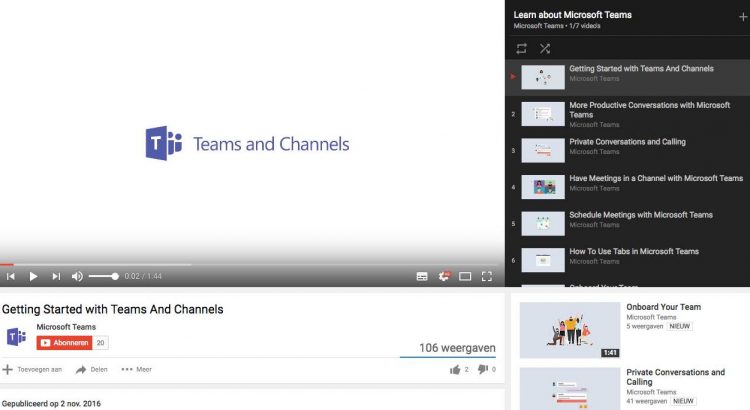
Check out these how-to videos to get started with Microsoft Teams!
Product Tour: https://youtu.be/bhIzp2tFXYQ
Summary: Take a quick tour of Microsoft Teams.
Teams and Channels: https://youtu.be/kyXzlnLNLB
Summary: Learn how teams can bring together all the right people, communications, files, and tools.
Using Tabs: https://youtu.be/mM_iGhuad38
Summary: Learn how to add tabs to different channels and chats that will allow your team to connect to other apps, hold conversations about different files, generate instant analytics, and more.
Productive Conversations: https://youtu.be/4guKy0jyFrk
Summary: Get some quick tips on how to have productive and targeted team conversations.
Private Chat and Calling: https://youtu.be/239yow7v2cU
Summary: Get all the information you need to make private calls or chat privately with teammates, from focused one-on-one conversations or as a group.
Meet Now: https://youtu.be/7k2omzTVexs
Summary: From a channel, go live together with video, screen sharing, and relevant content.
Onboard Your Team: https://youtu.be/LTHxsPmc8Wc
Summary: Learn how to get your team up and running so you can start collaborating and creating!
Scheduled Meetings: https://youtu.be/bDTTfP7RJ48
Summary: Find out everything you need to know about scheduling and organizing meetings in Microsoft Teams, from viewing all your appointments at once to how to join a meeting once you’ve accepted an invite!
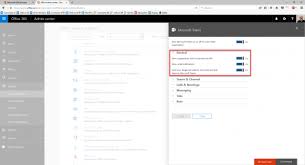
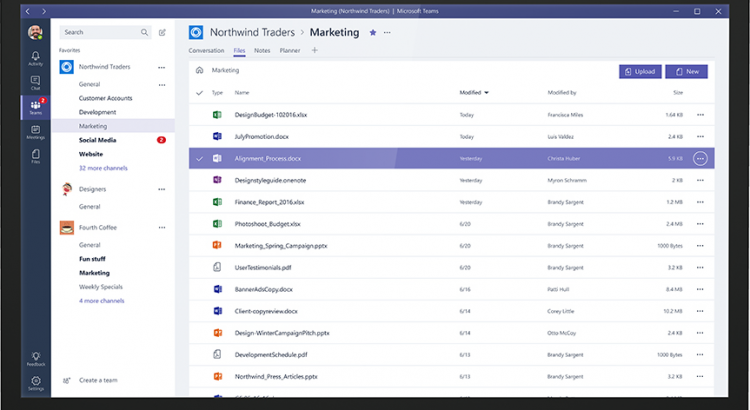
When I create a new team in Microsoft Teams, what is created for me in the background?